
Understanding WCAG Standards and What They Mean for Your Site
A breakdown of Web Content Accessibility Guidelines and how they apply to real websites. Learn the standards that shape accessible design.
Not everyone uses a mouse. We’ll walk through testing your site with keyboard-only navigation and screen readers. It’s simpler than you’d think.

Author
Head of Accessibility & Inclusive Design
Marcus Lim is an accessibility expert with 12 years of experience designing inclusive digital experiences for diverse communities across Singapore.
Here’s something that surprises a lot of designers: accessibility testing doesn’t require expensive software or a team of specialists. You don’t need special certifications or years of training. What you actually need is about 30 minutes, your keyboard, and maybe a free screen reader.
The reason most sites fail accessibility isn’t because designers are careless. It’s because they’ve never actually tried using their site without a mouse. Once you do that — once you sit down and try to navigate using only your keyboard — everything changes. Suddenly, you see the gaps. You notice the buttons that can’t be reached. You feel the frustration of not knowing where you are on the page.
About 8% of men have some form of color blindness. About 4% of the global population has a motor disability that makes using a mouse difficult or impossible. That’s not a tiny edge case — that’s roughly 1 in 12 people.
But here’s what really matters: keyboard navigation isn’t just for people with disabilities. Power users love keyboard navigation. Developers prefer it. People with injuries use it temporarily. On mobile, it’s how people with accessibility needs navigate touch screens. You’re not designing for a niche — you’re designing for everyone.
The basic test is straightforward. Put your mouse away — seriously, don’t touch it. Now try to:
If you can’t do these things, your site fails keyboard navigation testing. It’s that simple.

A screen reader is software that reads your website out loud. It converts text to speech. Sounds simple, but it completely changes how someone experiences your site.
The most popular screen readers are NVDA (free), JAWS (paid, very common), and VoiceOver (built into Mac/iOS). They work by navigating the HTML structure. They don’t see your beautiful design — they only see the underlying code.
Here’s the critical part: if your code is messy, your site is broken for screen reader users. If you use a `
You can test this yourself. Download NVDA (it’s free for Windows), enable it, and try navigating your site. Don’t look at the screen — just listen. You’ll immediately hear what’s wrong.
This guide is informational and covers general accessibility testing approaches. Accessibility is a complex field with many nuances. While these testing methods are widely used and recommended by accessibility professionals, specific requirements may vary based on your region, industry, and user base. For compliance with specific standards like WCAG 2.1 or legal requirements in your area, consult with an accessibility specialist or review your local digital accessibility regulations.
You don’t need a formal process. Here’s what actually works:
Press Tab repeatedly. Every interactive element should show a focus indicator. You should be able to reach every button, link, and form field. If something’s invisible, you’ve found a problem.
Go backwards through elements. Make sure the focus order makes sense. You shouldn’t jump around randomly or get stuck.
These should activate buttons and links. Forms should submit properly. Modals should open and close.
Enable NVDA, JAWS, or VoiceOver. Let it read your page. Does the heading structure make sense? Are image descriptions helpful? Can you understand the content without looking?
That’s it. Do this once per month. You’ll catch 80% of accessibility issues before users find them.

You don’t need to spend money. These are the tools we actually use.
The most popular free screen reader. It’s powerful, regularly updated, and used by real accessibility testers. Download from nvaccess.org. Takes about 10 minutes to get comfortable with basic navigation.
Built into Apple devices. Go to System Preferences Accessibility VoiceOver. You’ve probably already paid for this one. It’s solid, though the learning curve is steeper than NVDA.
Free. Works everywhere. Just use Tab, Shift+Tab, Enter, and Space. This is your first and most important test. No software required.
Chrome, Firefox, and Safari all have accessibility panels. Right-click Inspect Accessibility panel. You can see how screen readers interpret your code. Built-in, completely free.
Accessibility testing doesn’t have to be intimidating. You’re not trying to be perfect. You’re trying to understand how real people use your site, and then fix the obvious problems.
The first time you test with a screen reader, you’ll probably feel uncomfortable. You won’t know the keyboard shortcuts. You’ll get lost. That discomfort? That’s valuable. That’s what your users feel every day. That feeling is your feedback.
Start small. Test keyboard navigation this week. Try NVDA next week. Make notes about what breaks. Fix the biggest issues first. You’ll be amazed how many problems you can solve with an hour of testing and basic HTML fixes.
And here’s the bonus: when you make your site accessible, you’re also making it better for everyone. Better code structure. Clearer focus states. Proper heading hierarchy. These aren’t just accessibility features — they’re good design practices.
A breakdown of Web Content Accessibility Guidelines and how they apply to real websites. Learn the standards that shape accessible design.

Discover how to choose colors and fonts that work for everyone, including people with color blindness or low vision.
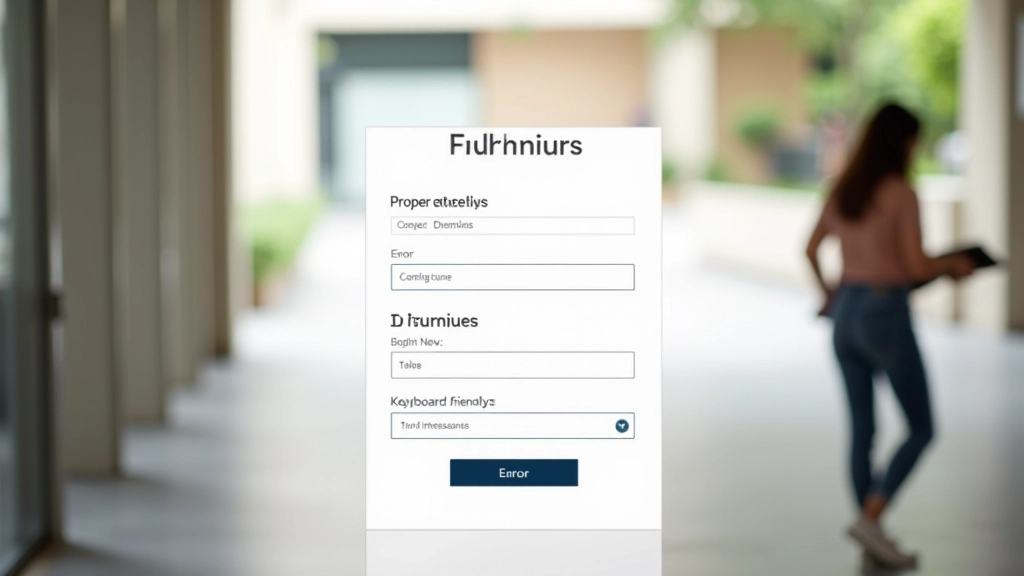
Forms don’t have to be frustrating. Learn how to structure forms with proper labels, error handling, and keyboard navigation support.